Your WordPress posts, shared the moment you publish
Install the free plugin, connect it once, and each post you publish is shared with a branded image from your own templates.
The plugin is free. Your PlanBatch plan sets the limits.
Everything the season needs, in one place
Our new collection is in: linen, outdoor pieces and the table that sold out last year.
Published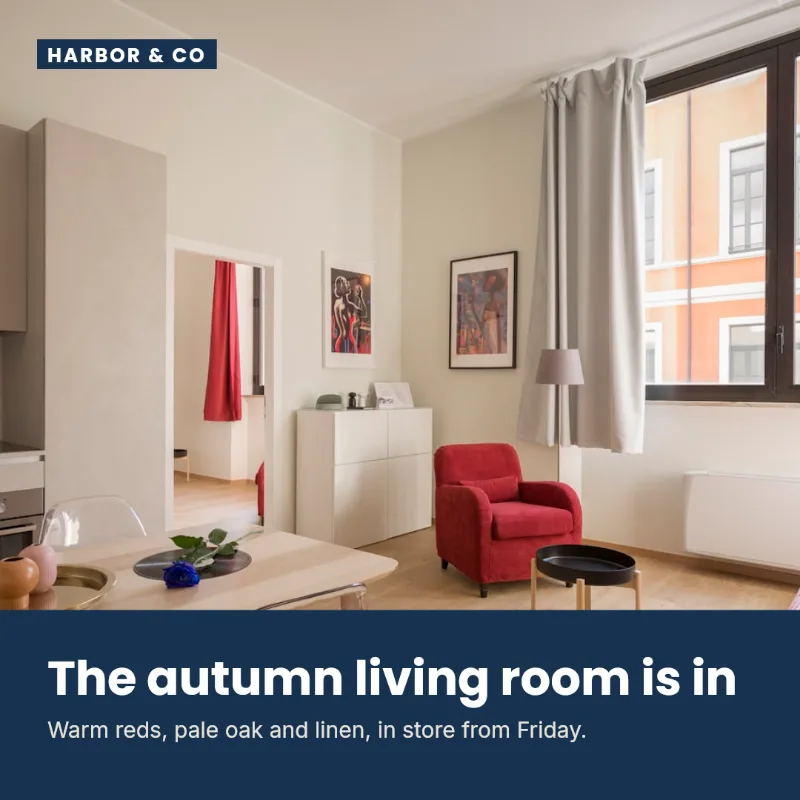
Three jobs, and nothing else
Every new post, shared as you publish
Publish as you always do, and PlanBatch schedules a social post on the channels you chose, with your caption pattern and, if you like, a branded image from your template. Drafts are never sent.
The archive you never got round to sharing
Pick as many old posts as you like and the days and times to spread them over, and PlanBatch drips them out. Anything already shared is skipped, so running it twice never double-posts.
Older posts, back in circulation
Shared posts go round again on a schedule you set, using what is left of your monthly posts and pausing when that runs out. Posts marked “Never recycle” and broken links are skipped.
What you get to control
Sharing automatically is easy to make crude. These are the parts that decide whether the result reads like something you wrote.
- A different caption per network
- The same post can read one way on LinkedIn and another on Instagram. First comments are per network too, which matters because networks treat links differently: on a LinkedIn profile or a Facebook Page a link in the comment is clickable and keeps the caption clean, while Instagram makes links clickable only in the bio, so its caption points there.
- Hashtags from the tags you already use
- A {hashtags} placeholder turns the post's own tags into hashtags, so “Web Design” becomes #WebDesign. Put it in the caption or the first comment, or leave it out on the networks where hashtags read as noise.
- Tracking parameters on the link
- Add UTM parameters and the traffic these posts bring shows up separately in your own analytics, so you can tell whether any of it worked. Fill in a source and the medium fills itself in as “social”.
- The image is rendered, not fetched
- The plugin sends your post's title, excerpt and featured image, and the branded graphic is rendered from one of your templates on our side. That is the part that turns a bare link into something worth stopping for, and it takes no design work per post.
- Your own AI assistant, kept to what the post says
- If you want help with the wording, Bulk Share builds a prompt carrying each selected post’s text for the assistant you already use, such as ChatGPT or Claude. The prompt tells it to summarise only what the post says, add no facts of its own, and quote the sentence behind every slide, so you can check each one against your post before anything is scheduled. PlanBatch itself sends nothing to any AI, and your posts are never changed.
- Facebook and Instagram as a Story
- A post can go out as a Story rather than a feed post on Facebook and Instagram, chosen per network, and the graphic is rendered at 9:16 for it instead of a feed image squeezed into the frame. A Story is the image, so it needs a branded template and is not offered when you are sharing a bare link.
Connecting it, start to finish
Here on PlanBatch: create a free account
This is where the scheduling and image rendering happen. Connect the social channels you want to post to while you are here.
On your WordPress site: install the plugin
In your WordPress admin, go to Plugins, Add New Plugin, search for PlanBatch, then Install and Activate.
The plugin on wordpress.orgStill in WordPress: PlanBatch in the admin menu, then Connect
A PlanBatch tab opens in your browser. Approve the connection there and choose which brand the site posts as, then you are returned to WordPress. You never copy or paste an API key.
Back in WordPress: choose what gets shared
Post types, channels, whether to render a branded image, and the caption pattern. That is the whole setup.
Why bother at all
Because a link on its own performs badly
Instagram will not take a text-only post at all, and a bare link on Facebook or a LinkedIn profile is the weakest thing you can publish. Rendering a branded image from your own template turns a link into something people actually stop for, and it takes no design work per post.
Because doing it by hand is what stops
Sharing every post manually works for about three weeks. The plugin removes the decision entirely: you publish, and the social post is scheduled. The archive drip does the same for the backlog you were never going to get to.
Because your words stay yours
PlanBatch does not write captions and does not invent images. You supply the pattern, your templates supply the design, and the same post produces the same result every time. If your excerpt is too long to fit, you are told the real number rather than having it quietly trimmed.
WooCommerce, Divi and custom post types
Any public post type your theme or plugins register appears automatically, so WooCommerce products and Divi Projects are there without configuration. A product's short description becomes its caption text, its gallery can become a carousel with one slide per image, and its price is available as a {price} placeholder formatted by your own store settings.
Common questions
Not covered here? Write to info@planbatch.com.
Can it re-share older posts, and will that use up my monthly posts?
It can, and yes it spends your allowance, which is why it is built to notice. Recycling re-shares content you have already published on a schedule you choose, using whatever is left of your monthly posts and pausing when that runs out rather than stopping halfway through a post. You can cap it lower than your plan allows, mark any individual post “Never recycle” from your posts list, and anything whose link no longer works is skipped instead of published.
Can I write a different caption for each network?
Yes, for the caption and for the first comment. The first comment is the one worth differing: on a LinkedIn profile or a Facebook Page a link in the comment is clickable and keeps the caption clean, while Instagram makes links clickable only in the bio, so its caption points there. Leave a network blank and it uses the shared pattern you set once.
Do I need a PlanBatch account to use the plugin?
Yes. The plugin is a thin client: it sends your post to your PlanBatch account, and the scheduling, image rendering and publishing all happen there. The plugin holds no settings that change what happens to your data, and it makes no request at all until you connect the site yourself. A free account is enough to try it.
How do I connect my site?
Install the plugin, then open PlanBatch in your WordPress admin menu and click Connect. A PlanBatch tab opens where you approve the connection and choose which brand the site should post as. The plugin then finishes on its own. You never copy or paste an API key.
What happens when I publish a post?
If you turned on auto-share for that post type, PlanBatch schedules a social post for it on the channels you picked. You choose whether it shares the link with a caption, or renders a branded image from one of your templates. Nothing is sent for drafts, private posts, or post types you did not select.
Can I share posts I published years ago?
That is what Bulk Share is for. Pick any published posts or products, choose the days and times you want them spread over, and PlanBatch drip-schedules the lot. Anything already shared through PlanBatch is skipped automatically, so you can run it more than once without duplicating.
Does it work with WooCommerce products?
Yes. Products appear alongside posts, the short description becomes the caption text, and the product gallery can become a carousel with one slide per image. A product's price is available as a {price} placeholder in your caption, formatted by your own store settings.
Does it work with Divi, Elementor or another page builder?
Yes. Any public post type your theme or plugins register shows up automatically, including Divi Projects, and PlanBatch asks WordPress for the excerpt rather than reading the raw content, so builder markup does not end up in your captions.
Will it post twice if I update a post?
No. WordPress fires its publish hooks more than once for a single editorial publish, so the server recognises a repeat by the post it came from and does nothing the second time. Updating and re-publishing an already-shared post does not create another social post.
What does the plugin send to PlanBatch?
Your site address and name when you connect, and then the title, excerpt, link and image URLs of the posts you share. If you use Prepare for AI in Bulk Share, also the text of the posts you selected, so the prompt can carry it; it is not stored. Nothing else: no visitor data, no analytics, no unpublished content, and nothing from post types you did not select. There is a page listing this in full at /wordpress/data.
Can I use an AI assistant to write the posts from my articles?
If you want to; it is optional. Bulk Share builds a prompt that carries the text of each selected post, you paste it into the assistant you use (ChatGPT, Claude or another), and paste its answer back. PlanBatch sends nothing to any AI itself. The prompt tells the assistant to summarise only what each post says, add no facts, numbers or claims of its own, and quote the sentence each slide is based on, so you can check every slide against your post before anything is scheduled. Your posts are not changed; they are only the reference.
How do I stop it?
Disconnect in the plugin's settings, or revoke the site's key from Connected Sites in your PlanBatch settings. Either takes effect immediately. Posts already scheduled stay on your calendar, where you can delete them.
Is the plugin free?
The plugin is free and always will be. Your PlanBatch plan is what sets the limits: how many posts a month you can schedule and how many social channels you can connect. The plugin never gates anything itself.
Connect your site
Create a free account, connect a channel, then install the plugin and press Connect. You can see exactly what the plugin sends and when before you decide.
Create a free account